Every organization has a folder tree for its skills. Folders keep large skill libraries navigable, define the directory layout of synced GitHub repos, and, when restricted, control who can see and edit the skills inside them.
The folder tree
Folders nest arbitrarily deep and are addressed by slug paths like
engineering/reviews. Skills live either at the organization root or inside
exactly one folder.
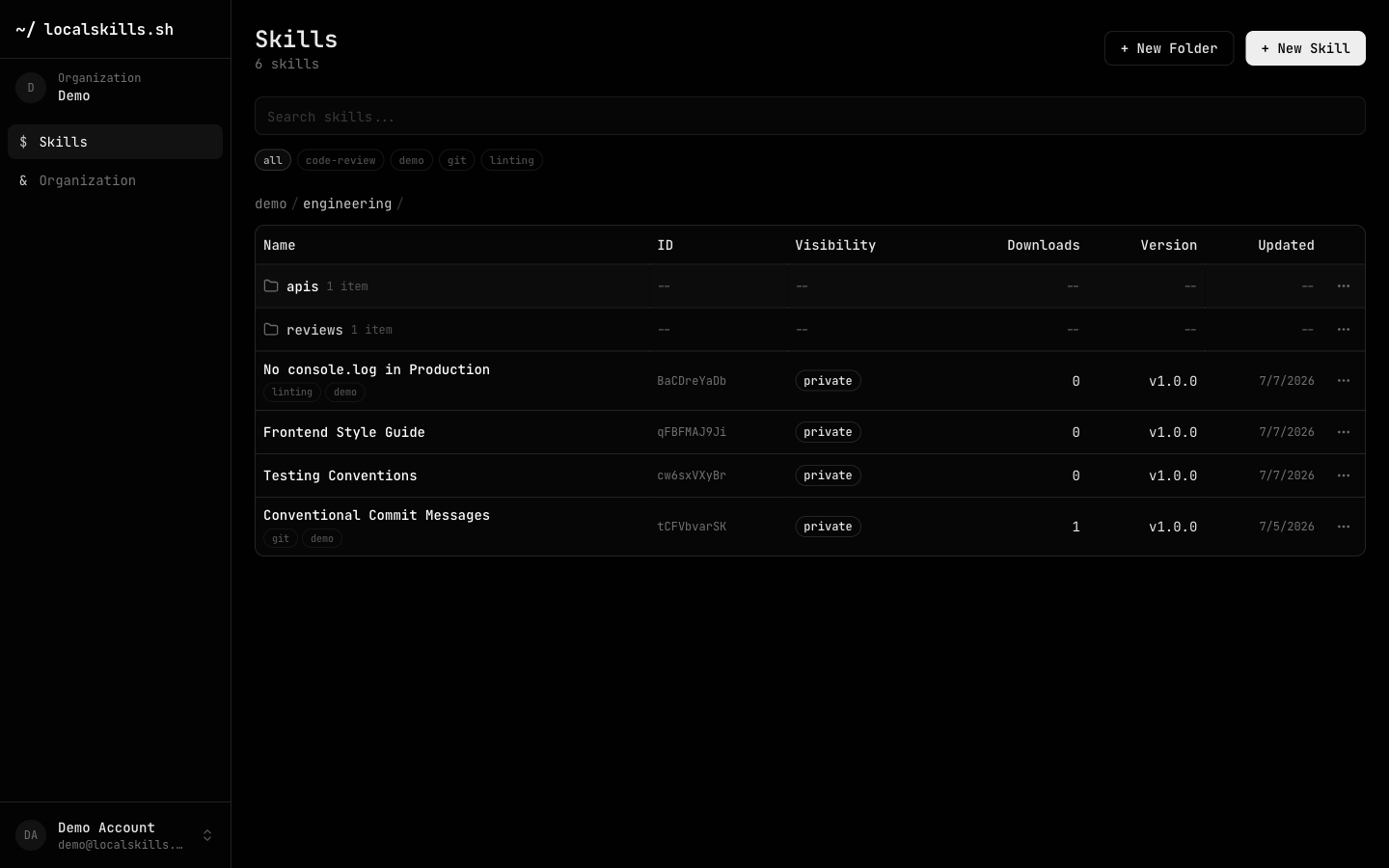
Create and manage folders anywhere you work: the dashboard (+ New Folder, and Rename, Move to…, Delete on each row), the CLI, or the API. Skills can be filed into a folder when created, or moved later:
localskills folders create engineering/reviews
localskills publish ./my-skill --folder engineering/reviews
localskills move my-skill engineering/reviews
Folder paths are organizational only: install identifiers (slug and public ID) never change when a skill moves between folders.
Managed personal workspaces
Organizations can enable Personal Workspaces to provision one restricted workspace per member. Their namespace root and member folders use the same ACL model described below, but LocalSkills owns their lifecycle. Generic folder rename, move, deletion, and ACL operations reject managed folders; use the organization’s Personal Workspaces page instead.
Restricting a folder
By default, private skills are visible to every organization member. Restricting a folder narrows that: its skills become hidden from everyone except the teams and members you grant access to (and admins, who always retain access).
Open Manage access from a folder’s actions menu, enable Restrict this folder, and add grants:
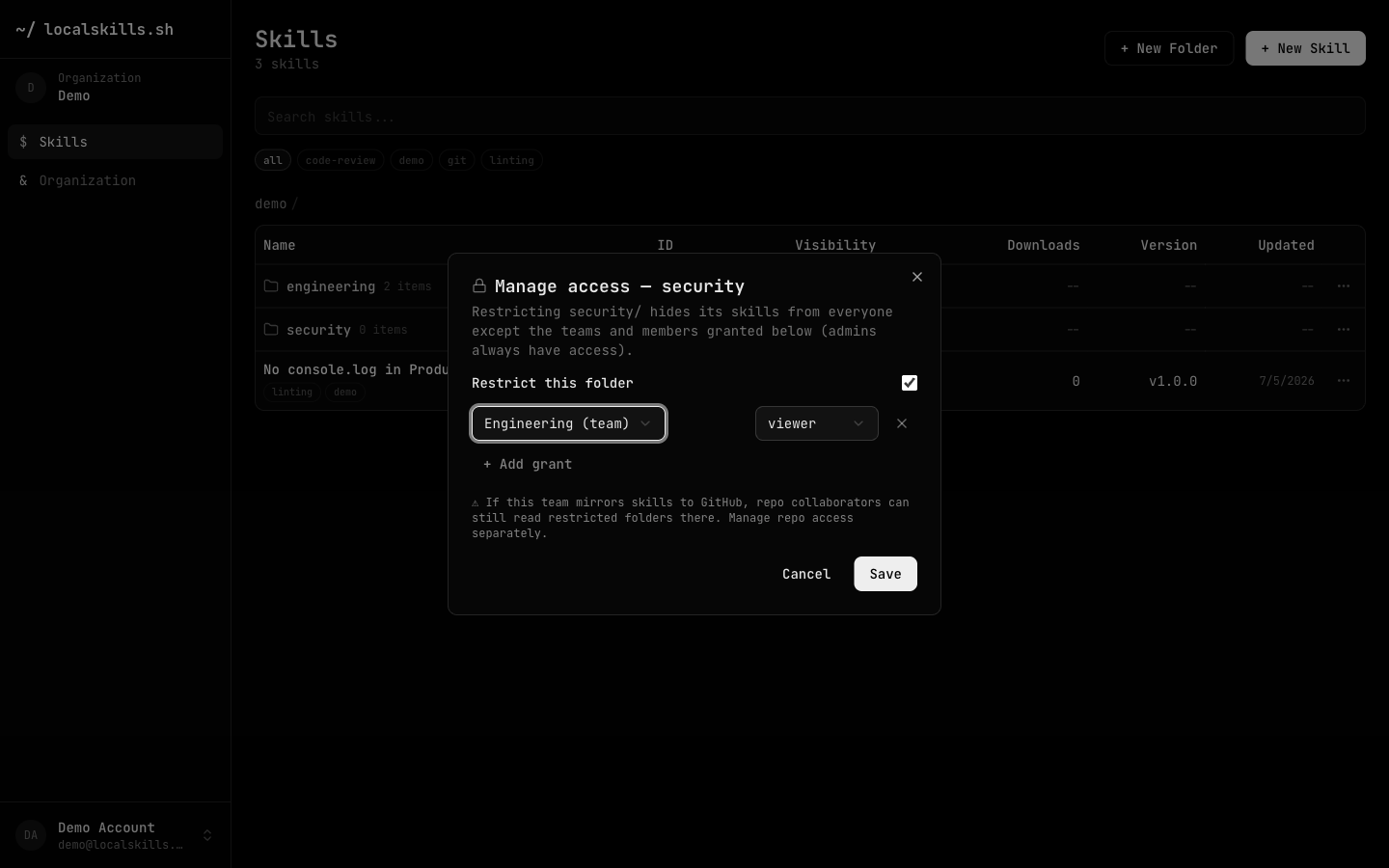
A restriction governs the folder and everything beneath it. If a subtree
contains another restricted folder, the deepest restriction wins for the skills
under it, so a broadly shared engineering/ can still contain a tightly held
engineering/secrets/.
Grant levels
Grants go to teams or individual members, at one of three levels. Grants only ever cap what a person can do; they never add permissions beyond the person’s organization roles.
| Level | Allows (up to your role’s permissions) |
|---|---|
| viewer | Read the folder’s skills. |
| editor | Read, create, update, and delete skills; manage subfolders. |
| manager | Everything editor allows, plus managing the folder’s access grants. |
Anyone whose role carries the folders: manageAcl permission (built into owner
and admin) bypasses restrictions entirely, and so do organization API tokens,
which act as the organization itself.
Where restrictions apply
Restrictions are enforced everywhere skills are read: the dashboard, share pages, the REST API, the CLI, and the MCP server. A member without a grant doesn’t see restricted skills in lists, search, or installs at all.
Auditing
Folder activity is captured in the organization audit log: folder.created,
folder.updated, folder.deleted, and folder.acl_updated (with the
restriction state and grant changes).